English
 Turkish
 Deutsch


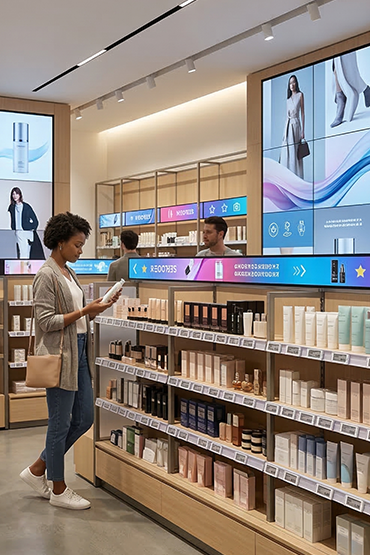
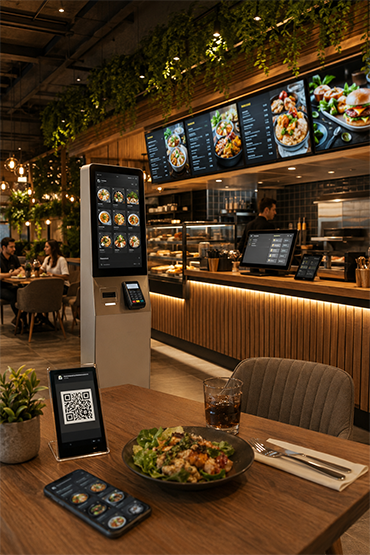
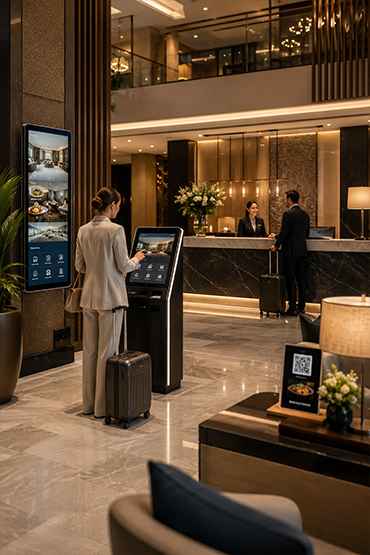
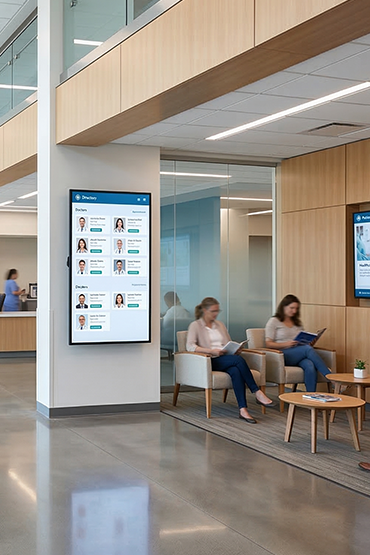









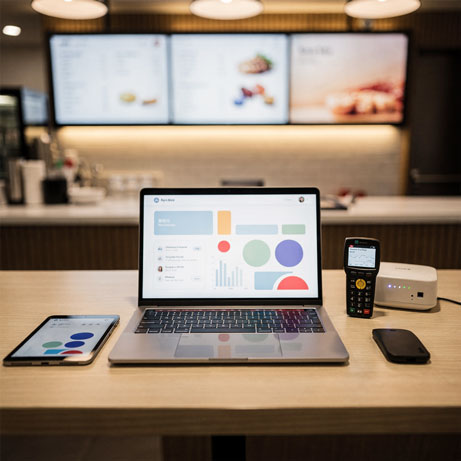
When evaluating digital signage software, use the pilot to rehearse a real publishing day. A campaign should reach the intended screens, change at the scheduled time and leave the team with a clear response if the network goes down. This checklist helps retail and IT teams agree expected results and verify them on site.
Choose two stores, three screens and one test campaign
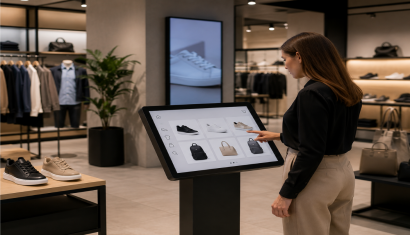
Pick a shopping centre store and a high street store with different opening hours. At the shopping centre, use a portrait window display and a landscape display by the tills. Add one screen at the high street store. Give each screen a name that identifies the store, location and orientation, such as “Shopping centre / Window / Portrait”.
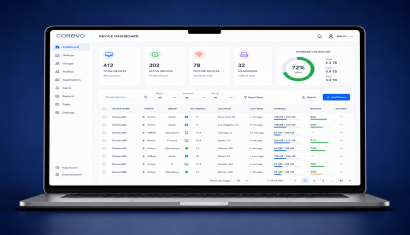
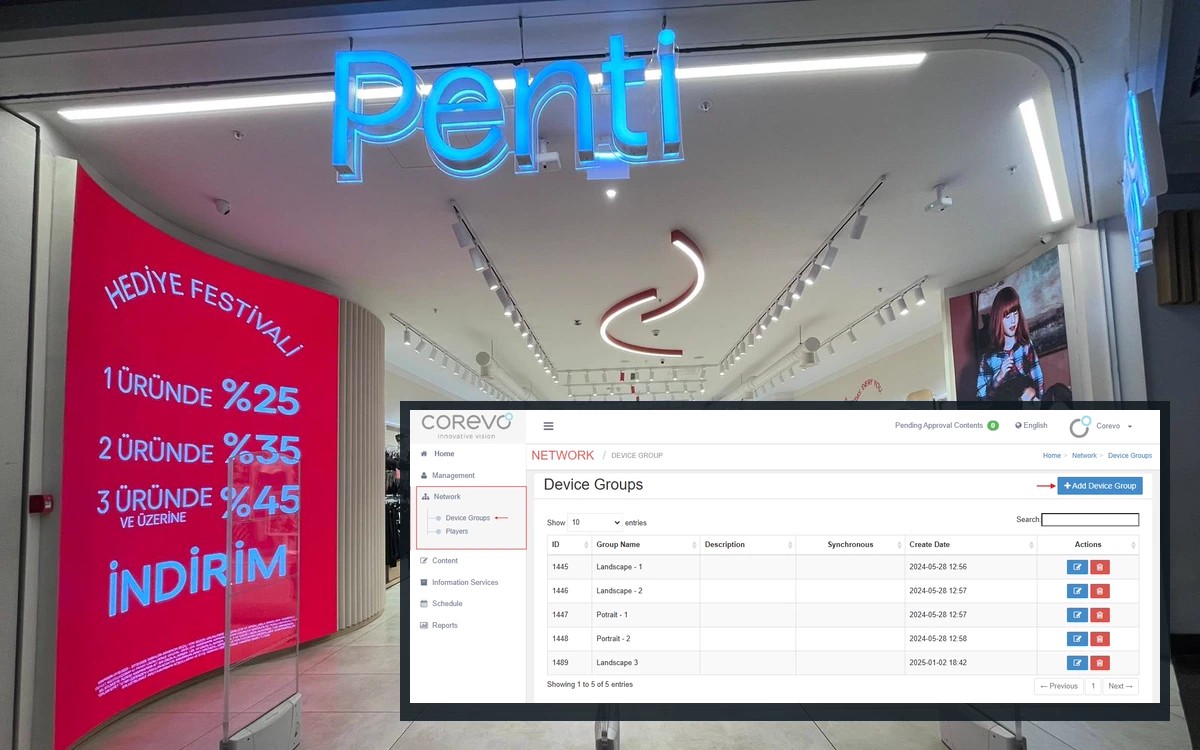
Corevo digital signage software supports device groups, date- and time-based scheduling and remote device monitoring. Organise test files by store and screen type. Run any test creative that shows prices on a controlled display or after closing time.
Run four tests before going live
- Screen targeting. Send the test campaign only to the shopping centre’s window display group. Check that it appears there. Then check that the till and high street displays continue their existing playback.
- Start and end time. Set a short test window, such as 10:00 to 10:15 local time. Record when the campaign appears and whether the scheduled default content returns at the end.
- Connection loss and recovery. Ask IT to disconnect one pilot device in a controlled test. Try a video that has already reached the device and a live online feed separately. When the connection returns, record how long any pending update takes to appear.
- Recovery from a publishing error. Publish a test item on the controlled display. Ask the team to withdraw it and restore the approved content. Compare the time taken with your agreed recovery target.
Compare the device alert with what appears on screen
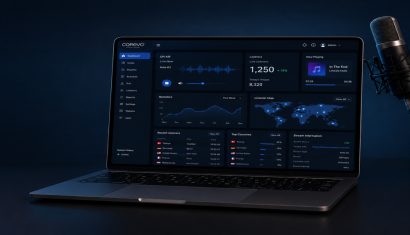
Corevo's connection alarm can email the designated recipient when a selected device goes offline. Record when the email reaches the right person during the test. Ask the store team to photograph the display at that time. The device status shows whether the player can reach the platform. The photo confirms what customers would have seen.

Example alarm rule in the Corevo Help Center.
Record the result for each screen
For each test, record the screen name, expected outcome, observed outcome, time, on-site evidence and owner. For example, “Shopping centre window: default content expected at 10:15; confirmed on screen at 10:15; store photo attached.” Give each open issue an owner and a retest date.
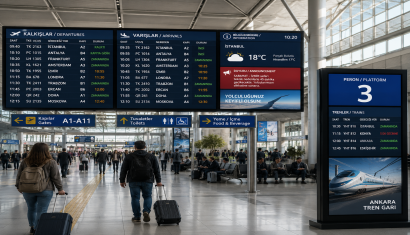
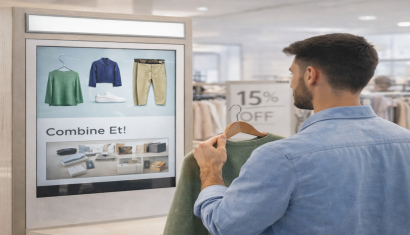
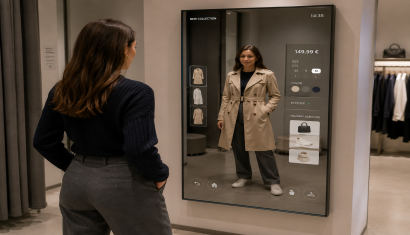
Unisoft’s Penti project in Türkiye shows campaign and collection content distributed to different displays across stores. Your project may use different screen orientations, operating systems and publishing rules. Bring a device list and the scenarios you want to test to your digital signage software discussion.